Recommended Settings
ProcessBook
The following are the recommended settings for the ProcessBook.
In the ProcessBook:
- Click on File > Assign Model to display.
- Check the Keep Model and display synchronized checkbox.
- Click OK.
- Click on Tools > Modeler Preferences.
- Click the Connections tab.
- Check the Create a new connection point for each connection checkbox.
- Click on Tools > Preferences.
- Click the General tab
- Uncheck the Prefer Run Mode checkbox.
- Click on Tools > Data Sets.
- Select AF > Edit.
- Check the Do not retrieve AF Data in Build Mode checkbox.
- (Optional) Select the Background Color setting:
- Click on Edit > Display.
- Click on the Background color box and select Light gray.
- (Optional) Select the Color settings:
- Click on Edit > Format.
- Select the following settings:
- Line=Black
- Fill=None
- Background=None for Text Format
- (Optional) Select the Font settings:
- Click on Edit > Format.
- Select the following settings:
- Font=Arial
- Font Style=Regular
- Size=8 for Text Font
- (Optional) Select the Line Style settings:
- Click on Edit > Format.
- Select the following settings:
- Solid Arrow
- Regular Weight for Connector Style
- If the AF Browser dockable pane is not displayed, click on View > AF Browser to display it
- If the AF Property dockable pane is not displayed, click on View > AF Property to display it.
- Click on Tools > Data Sets.
- Select AF > Edit.
- Check the Do not retrieve AF Data in Build Mode – Repeat for AF2 checkbox.
- Click on Edit > Display.
- Uncheck the Automatically enable Scripting checkbox.
- Click on the Disable scripting for All symbols checkbox.
- Click OK.
ProcessBook & System Explorer
- Do one of the following:
In ProcessBook, click the
 Run Mode button.
In System Explorer, select Sigmafine Analysis.
The Case Runner displays.

The remaining steps are the same regardless of which interface you are using.
Right-click on the Case Runner and select Configure.
The Case Runner Properties window opens.
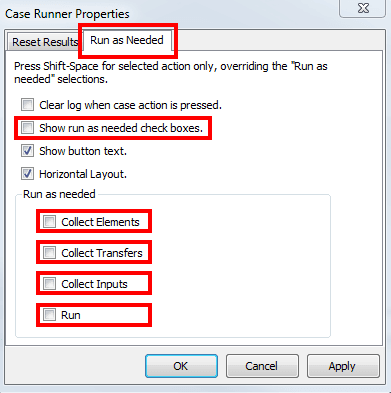
Click the Run as Needed tab.
Uncheck the following options:
- Show run as needed check boxes
- Collect Elements
- Collect Transfers
- Collect Inputs
- Run
- Click the Reset Results tab.
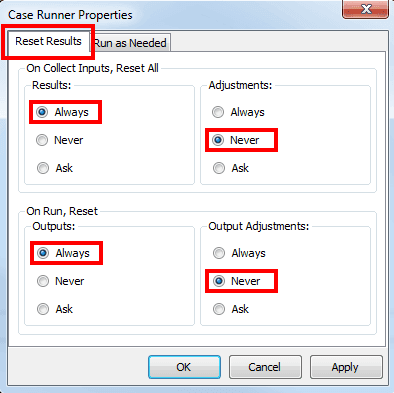
- Configure the options as shown in Figure 28.
- In the On Collect Inputs, Reset All section, select Always under Results and Never under Adjustments.
- In the On Run, Reset section, select Always under Outputs and Never under Output Adjustments.
- Click Apply and then OK.